
Problem
Atlassian does not natively provide a field that can be used for teams and team members.
Solution
This issue can be overcome by leveraging Jira assets to create objects resembling Users and Teams. Each user can then be associated with their respective team through an attribute.
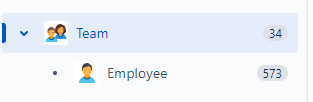
In Jira, managing teams and their members is a crucial aspect of efficient project and task management. However, Atlassian’s Jira doesn’t come with a built-in feature specifically designed for teams and team members. So, how can you create a structured team setup within Jira? The solution lies in utilizing Jira assets and some creative workarounds.
Creating Asset Objects
To begin, we’ll create two custom objects within Jira – one representing Users and the other representing Teams.
- User Object: This object will mimic a user profile. You can include fields such as name, email, role, and more to represent team members.
- Team Object: This object will serve as a container for your teams. You can add fields like team name, description, and perhaps a list of team members.
Associating Users with Teams: Now comes the important part – associating each user with their respective team using an attribute. This can be achieved through the following steps:

Team Object:

Create an Asset customfield called “Assigned Member” and configure with the parameters bellow:
| Object schema: Assets Filter scope (AQL): objecttype = “Team” Filter issue scope (AQL): None Allow search filtering by these attributes: Name, Description Object attributes to display on issue view: Team Lead Field can store multiple objects: No Display a default object when this field appears in a customer portal: No |
Employee Object

Create an Asset customfield called “Team Member” and configure with the parameters bellow:
| Object schema: Assets Filter scope (AQL): objecttype = “Employee” Filter issue scope (AQL): Team IN ${customfield_10185} Allow search filtering by these attributes: Name, Email Object attributes to display on issue view: Team Field can store multiple objects: No Display a default object when this field appears in a customer portal: No |
Benefits of this Approach
- Flexibility: This approach offers flexibility in managing teams. Users can be part of multiple teams or have different roles within each team, all within the same Jira instance.
- Better Reporting: With this structured setup, you can generate reports and gain insights into team performance, work distribution, and more.
- Easy Collaboration: Teams can collaborate more effectively, as they can see their team members directly within Jira.
- Scalability: As your organization grows and teams evolve, this approach can scale accordingly.
While Atlassian may not provide a native feature for teams and team members, this creative use of assets and custom objects can help you create a structured team setup tailored to your needs. It’s a workaround that allows you to harness the full power of Jira for efficient team collaboration and project management.
Below are some queues that can be useful with this configuration.
Queues (Team Priority)
| Queue Name | Filter |
|---|---|
| ⚠️ Major incidents with my team | “Assigned Team” in aqlFunction(“object having inboundReferences(objectType = Employee and User = currentUser())”) AND “Major incident” is not EMPTY AND resolution = Unresolved ORDER BY “Time to resolution” ASC |
| ⚠️ Unassigned with my team | “Assigned Team” in aqlFunction(“object having inboundReferences(objectType = Employee and User = currentUser())”) AND assignee is EMPTY AND resolution = Unresolved ORDER BY “Time to resolution” ASC |
| 📌 I’m Working On It | assignee = currentUser() AND resolution = Unresolved ORDER BY “Time to resolution” |
| ↳ ⌛️ I’m Waiting on Customer | assignee = currentUser() AND status = “Waiting for customer” ORDER BY “Time to resolution” ASC |
| ↳ ⏸ Pending by Me | assignee = currentUser() AND status = Pending ORDER BY “Time to resolution” ASC |
| ↳ ⏳SLA About to Breach | “Assigned Team” in aqlFunction(“object having inboundReferences(objectType = Employee and User = currentUser())”) AND “Time to resolution” < remaining(30m) AND “Time to resolution” != breached() |
| 📫 Open – Assigned to My Teams | “Assigned Team” in aqlFunction(“object having inboundReferences(objectType = Employee and User = currentUser())”) AND resolution = Unresolved |
Queues (Other)
| Queue Name | Filter |
|---|---|
| ↳ ⏸ Pending – Assigned to My Team | status = Pending AND “Assigned Team” in aqlFunction(“object having inboundReferences(objectType = Employee and User = currentUser())”) |
| ↳ ✅ Recently Resolved by me | assignee = currentUser() AND resolved >= -7d ORDER BY resolved ASC |
| ↳ 🤚 Recently Cancelled >7days | “Assigned Team” in aqlFunction(“object having inboundReferences(objectType = Employee and User = currentUser())”) AND status = Cancelled AND resolved >= -7d ORDER BY resolved ASC |
| ↳ ☝ Not being updated >5days | “Assigned Team” in aqlFunction(“object having inboundReferences(objectType = Employee and User = currentUser())”) AND updated >= -7d AND resolution = Unresolved AND status != Pending ORDER BY “Time to resolution” ASC |
Below are some automations that have been helpful for me in implementing this solution:
Optional Automations
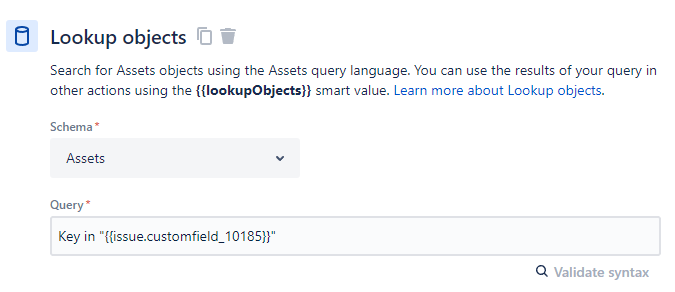
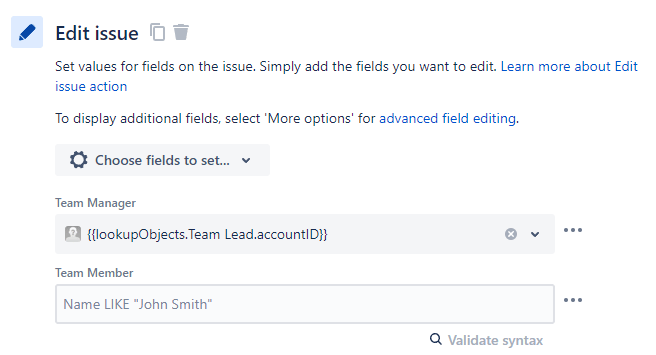
👨🏼💻 When Team Member is added → Assign the issue to the user
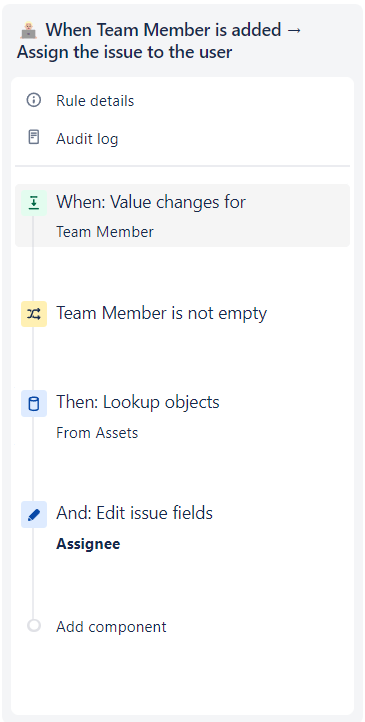
Lookup objects: “Key” = “{{customfield_101861}}”
Edit issue: {{lookupObjects.User.accountId}}
💡 You can modify the permission scheme to prevent manual editing of the issue Assignee, allowing it to be changed only through this automation. Simply grant permission for the “Automation for Jira” user in the “Assign Issues” permission.
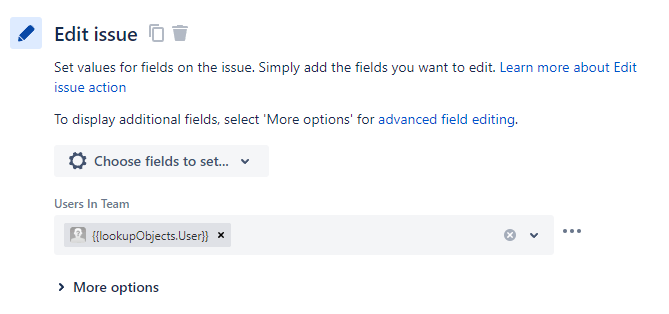
📢 When the Assigned Team changes → Notify Users In Team
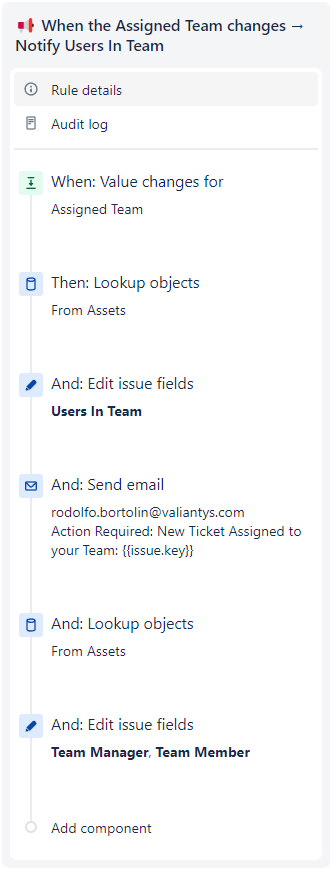
Lookup objects: “Team” = “{{customfield_101852.Name}}” and objecttype = “Employee”
<div style="color: #333333; font-family: Arial, sans-serif; font-size: 14px; line-height: 1.4;margin: 1px !important;padding: 1px important;">
   <div>
      <p>Hello,</p>
      <p>A ticket has been assigned to your team <strong>({{issue.Assigned Team.Name}})</strong> and requires your attention and action. Please review the details below and take the necessary steps to address the issue:</p>
      <p><strong>Ticket Details:</strong></p>
      <ul>
         <li>Ticket ID: {{issue.key}}</li>
         <li>Summary: {{issue.summary}}</li>
         <li>Request Type: {{issue.Request Type.requestType.name}}</li>
         <li>Requester: {{reporter.displayName}}</li>
         <li>Urgency: {{issue.Urgency}}</li>
         <li>Impact: {{issue.Impact}}</li>
         <li>Priority: {{issue.priority.name}}</li>
         <li>Status: {{issue.status.name}}</li>
         <li>Description: {{issue.description}}</li>
      </ul>
   </div>
   <p><a href="{{issue.url}}" style="color: #3572b0; text-decoration: none;">View request</a> </p>
   <p style="color: #707070; font-size: 12px;">This is shared with {{lookupObjects.Display Name}}.</p>
</div>
📢 👉 You may also want to read this post: Building an Efficient and User-Friendly Service Catalog with Jira Service Management Assets
 Atlassian Expert Tips