EazyBI is a powerful tool for data analysis and reporting, especially when you’re working with Jira data. One of its standout features is the ability to create custom hierarchies, which can help you gain deeper insights into your project’s structure and performance. In this blog post, we’ll walk you through the process of creating a custom hierarchy in EazyBI, specifically focusing on an Initiative hierarchy.
Step 1: Advanced Settings – Create the Custom Hierarchy
In EazyBI, creating a custom hierarchy starts with configuring advanced settings. This is where you define the hierarchy structure and its attributes. In this case, we’ll create a hierarchy based on the “Initiative” dimension. To do this, follow these settings:
[jira.customfield_initiative]
name = "Initiative"
inward_link = "Parent Initiative"
issue_type = "Initiative"
update_from_issue_key = "epic_key"
dimension = true

[[jira.issue_hierarchies]]
name = "Initiatives"
all_member_name = "All Issues by Initiative"
levels = [
    {name = "Initiative", key_column = "customfield_initiative", issue_type = "Initiative"},
    {name = "Epic", key_column = "epic_key"},
    {name = "Parent", key_column = "epic_parent_key"},
    {name = "Sub-task", key_column = "subtask_key"}
]
These settings define the “Initiative” custom field, specify its relationships, and create the “Initiatives” hierarchy, which includes levels for Initiative, Epic, Parent, and Sub-task.
Step 2: Import Initiative in the Cube
Once you’ve configured the custom hierarchy in EazyBI’s advanced settings, the next step is to import the “Initiative” dimension into your cube. This is a crucial step to ensure that you can use this hierarchy in your reports.
Step 3: (Optional) Create a Link
Depending on your specific use case, you might want to create a link that specifies how this custom hierarchy relates to other elements in your Jira projects. This step is optional but can enhance the clarity of your hierarchy.

Step 4: Reporting
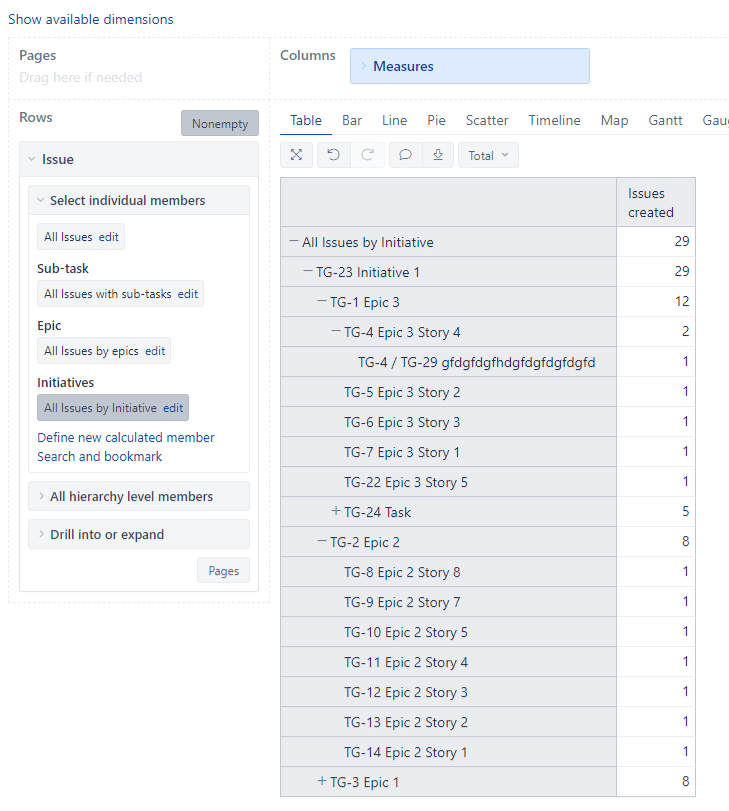
With the custom hierarchy set up and the “Initiative” dimension imported into your cube, you’re ready to start creating insightful reports. Whether you need to analyze your project’s progress by initiative, track epic dependencies, or delve into sub-tasks within initiatives, EazyBI’s custom hierarchies make it possible.
 Atlassian Expert Tips