
Are you looking to streamline your service catalog and make it more user-friendly within Jira Service Management? While Jira offers powerful tools for managing tasks and issues, creating a comprehensive and user-friendly service catalog can be a bit challenging. However, with a clever approach using Assets, you can create a service catalog with Category and Subcategory fields that are not only easy to use but also highly efficient. In this blog post, I’ll guide you through the process.
Why Use Assets for Your Service Catalog?
Jira Assets can be a game-changer when it comes to building a service catalog. Assets are versatile, customizable, and can serve as a centralized source of values for your catalog’s Category and Subcategory fields. Here’s how you can do it:
Step 1: Create Category and Subcategory Fields
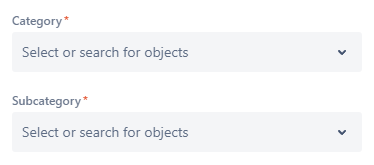
Start by defining two custom fields within your Jira project: Category and Subcategory. These fields will serve as the building blocks of your service catalog. Configure them as follows:
Category Field: This field represents the broad categories of services or items you offer. For instance, if you’re managing an IT service catalog, categories could include “Hardware,” “Software,” “Networking,” and so on.
| Object schema: AssetsFilter scope (AQL): objecttype = “Category” Filter issue scope (AQL): “Issue Type” = ${issueType.label} Allow search filtering by these attributes: Name Object attributes to display on issue view: None Field can store multiple objects: No Display a default object when this field appears in a customer portal: No |
Subcategory Field: Subcategories are more specific divisions within each category. For example, under “Hardware,” you might have subcategories like “Laptops,” “Desktops,” “Printers,” and so forth.
| Object schema: Assets Filter scope (AQL): objecttype = “Subcategory” Filter issue scope (AQL): Category = ${customfield_10200.label} AND “Issue Type” = ${issueType.label} Allow search filtering by these attributes: Name, Description Object attributes to display on issue view: Team, Affected services Field can store multiple objects: No Display a default object when this field appears in a customer portal: No |
Step 2: Populate Assets Table
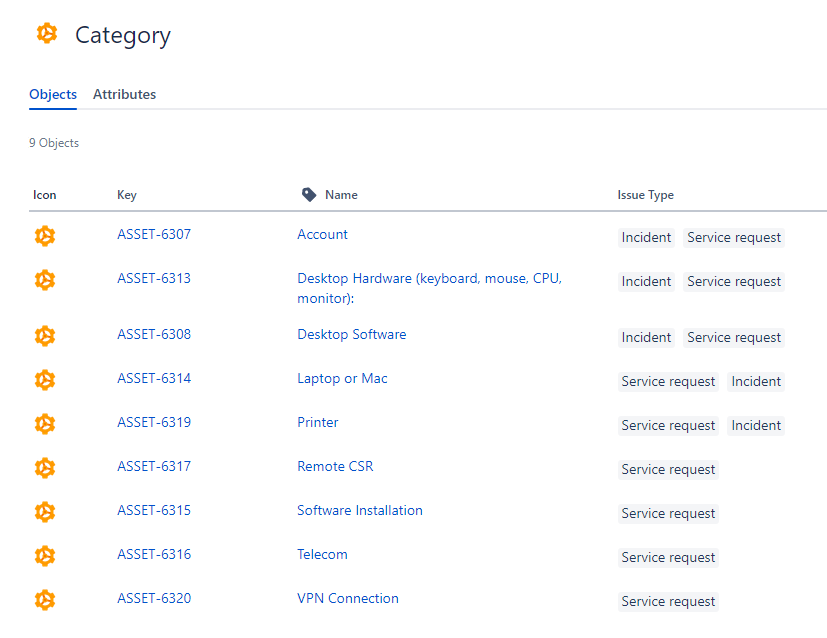
Now comes the exciting part. Populate the Assets table with the values corresponding to your Category and Subcategory fields. For each category and subcategory, create an Asset entry. This creates a structured and organized repository of your service catalog’s values.
Step 3: Link Assets to Issue Types
Here’s where the magic happens. Link your Asset entries to specific issue types within Jira. For instance, you can associate certain categories and subcategories with particular issue types like “Incident,” “Request,” or “Change.”
Step 4: Utilize Issue Type-Based Filters
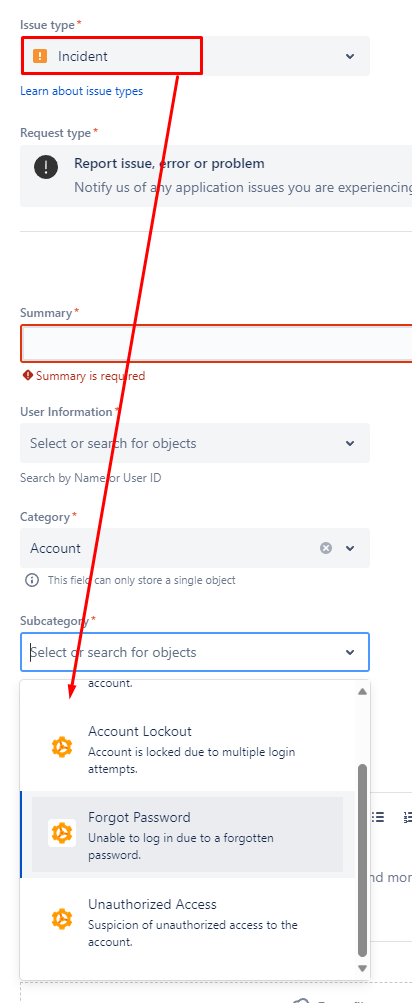
To enhance user experience and make your service catalog more intuitive, create filters that are issue type-specific. This means that when users select a particular issue type (e.g., “Request for New Hardware”), the Category and Subcategory fields will dynamically filter their options based on the linked Assets. This ensures that users only see relevant choices, simplifying the selection process.

Automations
⚗️ When Subcategory changes → Set Assigned Team, Team Manager and Affected Services
This automation is very useful for delegating the ticket to the team responsible for handling it as quickly as possible. Each object within the subcategory has an attribute that represents the team responsible for the subcategory.
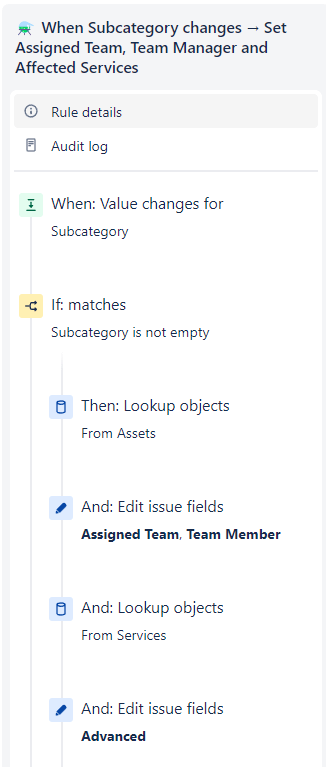
1st Lookup Objects: Key in “{{issue.customfield_10179}}” where 10179 being Subcategory customfield.
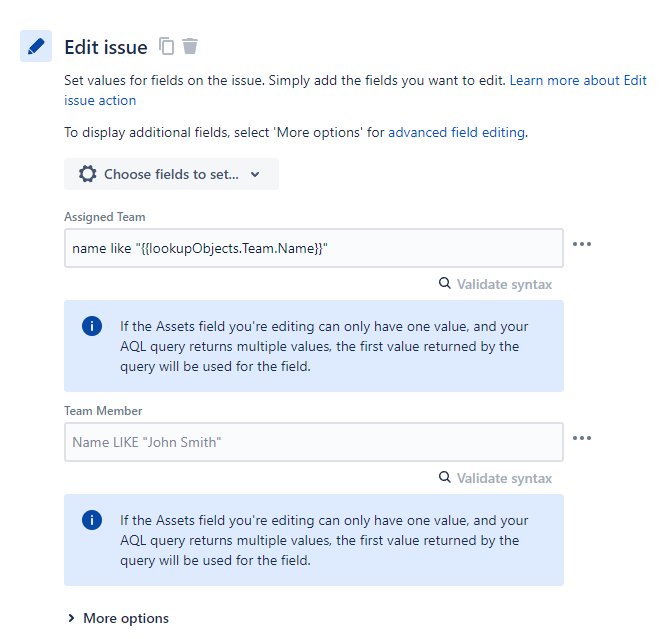
2nd Lookup objects
object HAVING inR(objectType = "Subcategory" AND Key in ({{issue.customfield_10179}})) OR object HAVING inR(objectType = "Application" AND Key in ({{issue.customfield_10179}}))📌 Don’t forget that this lookup is pointing to the Services table, where all the affected services of Jira are stored, not your structure (in my case, “Assets”).
Last Edit issue
This final edit is responsible for copying all the Affected Services associated with this subcategory found in the previous lookup to the “Affected Services” field in Jira, if they exist.
{
    "fields": {
        "Affected services": [
           {{#lookupObjects}}
             {"id": "{{Service ID}}"}{{^last}},{{/}}
           {{/}}
         ]
    }
}
Benefits of Using Assets for Your Service Catalog:
- User-Friendly: By filtering options based on issue type, users only see choices relevant to their request, making the catalog more user-friendly.
- Efficiency: Assets provide a centralized repository of catalog values, making it easy to manage and update your service offerings.
- Customization: You can easily add, remove, or modify categories and subcategories as your services evolve.
- Consistency: With a structured catalog, you ensure that all requests are properly categorized and handled.
- Reporting: Assets enable better reporting and analytics, helping you make data-driven decisions.
📢 👉 You may also want to read this post: Creating a Team Structure Using Jira Service Management Assets
 Atlassian Expert Tips
I like the complexity of the guide, but does it really work?
I mean primary this placeholder ${issueType.label}.
The issuetype placeholder won’t work for Jira Service Management requests. You must use a custom field instead (Advanced: Placeholders | Jira Service Management Data Center 10.0 | Atlassian Documentation.)
LikeLiked by 1 person
Hey! Thanks for the comment! Yes, it does work! This was documented from a project I delivered.
LikeLike