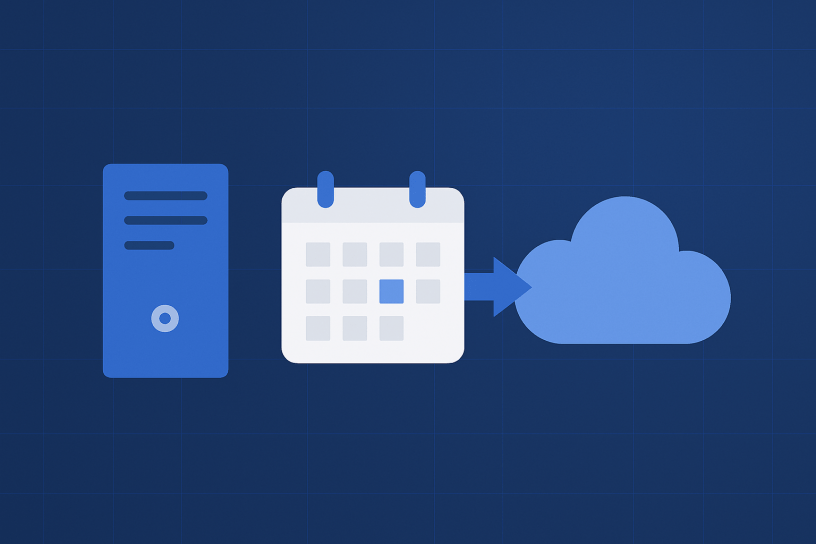
Important: A new version of CCMA has been released, and performing the procedures below is no longer necessary to migrate Team Calendars to Confluence Cloud. I’ll leave the post here for historical and learning purposes only. Thank you! https://jira.atlassian.com/browse/MIG-124
In this guide, we will walk you through the process of migrating your team calendars from a server environment to a cloud environment. We will use Python scripts to automate parts of the process and ensure a smooth migration.
Prerequisites
Before you start the migration, make sure you have the following prerequisites in place:
- Access to Server Data: You should have access to the calendars and associated data on your server.
- Access to Cloud Environment: You should have administrative access to your cloud environment, including permissions to create calendars and import data.
- Python Environment: Ensure you have Python installed on your local machine along with the required libraries, such as
BeautifulSoup,csv,os,time,requests, andselenium. You may also need to install the Chrome WebDriver for Selenium. - Calendar Data: You should have extracted the necessary calendar data and stored it in CSV files, as described in the SQL queries provided.
Step 1: Extract Calendar Data
All Calendars -> calendars.csv
Run the following SQL query to extract calendar data from your server and save it as calendars.csv. This file will contain information about all the calendars you want to migrate.
-- Query to extract calendar data
SELECT um.lower_username as creator, tc."ID", tc."NAME" as calendar_name, s.spacename, s.spacekey
FROM "AO_950DC3_TC_SUBCALS" tc
JOIN user_mapping um ON um.user_key = tc."CREATOR"
JOIN SPACES s ON tc."SPACE_KEY"=s.spacekey
LEFT JOIN "AO_950DC3_TC_SUBCALS_PRIV_USR" pu ON tc."ID" = pu."SUB_CALENDAR_ID"
LEFT JOIN "AO_950DC3_TC_SUBCALS_PRIV_GRP" pg ON tc."ID" = pg."SUB_CALENDAR_ID"
WHERE tc."PARENT_ID" IS NULL AND pu."ID" IS NULL AND pg."ID" IS NULL;
Pages with Calendars -> pages.csv
Run the following SQL query to extract data about pages that contain calendars and save it as pages.csv. This file will help you identify which pages have calendar macros.
-- Query to extract pages with calendars
SELECT c.title as PageName,
       u.username  AS Creator,
       c.creationdate,
       c.lastmoddate,
       s.Spacename,
       b.body,
       s.Spacekey,
       um.username AS LastModifier,
       CONCAT('<server_or_cloud_base_url>', '/pages/viewpage.action?pageId=', c.contentid) AS "Page URL"
FROM content c
JOIN user_mapping u ON c.creator = u.user_key
JOIN user_mapping um ON c.lastmodifier = um.user_key
JOIN Spaces s ON c.SpaceID = s.SpaceID
JOIN Bodycontent b ON c.contentid = b.contentid
WHERE c.prevver IS NULL
       AND c.contenttype = 'PAGE'
       AND c.content_status = 'current'
       AND b.body like '%<ac:structured-macro ac:name="calendar%'
Order by s.spacename;
Step 2: Run Python Script
Now that you have extracted the necessary data and saved it in CSV files, you can use the provided Python script to migrate your calendars. Ensure you have customized the script according to your specific server and cloud environment details.
The script performs the following steps:
- Authentication: It logs in to your server or cloud environment.
- Calendar Download: It downloads calendar data from the server.
- Calendar Upload: It uploads the downloaded calendars to the cloud.
- Page Data Extraction: It analyzes your Confluence pages to identify which ones contain calendar macros and extracts this information to
pages_with_calendars.csv.
Step 3: Execute the Migration
Depending on whether you are migrating from the server or cloud, set the server_or_cloud variable in the Python script to the appropriate value (‘server’ or ‘cloud’). Then, execute the script.
from bs4 import BeautifulSoup
import csv
import os
import time
import requests
from selenium import webdriver
from selenium.webdriver.common.by import By
from selenium.webdriver.support.ui import WebDriverWait
from selenium.webdriver.support import expected_conditions as EC

# Path to the directory containing your downloaded .ics files
ics_files_directory = 'C:\\Users\\rodol\\Downloads'

# Create a list to store page data with associated calendar IDs
page_data_with_calendars = []

server_base_URL = "http://localhost:8090/confluence/"
server_email = "admin"
server_password = "admin"

cloud_base_URL = "https://<domain>.atlassian.net/wiki/"
cloud_email = "rodolfobortolin@gmail.com"
cloud_password = "<your_atlassian_cloud_password"


server_or_cloud = 'server'

if server_or_cloud == 'server':

    driver = webdriver.Chrome()
    driver.get(cloud_base_URL)
    driver.maximize_window()

    time.sleep(1)

    inputElement = driver.find_element(By.ID, "os_username")
    inputElement.send_keys(server_email)
    inputElement = driver.find_element(By.ID, "os_password")
    inputElement.send_keys(server_password)

    driver.find_element(By.ID, 'loginButton').click()

    time.sleep(1)


    # Read the CSV file with calendar data
    with open(os.path.join(os.path.dirname(os.path.abspath(__file__)), 'calendars.csv')) as csv_file:
        csv_reader = csv.DictReader(csv_file)
        for row in csv_reader:

            calendar_id = row['ID']
            spacekey = row['spacekey']


            download_url = f'{server_base_URL}rest/calendar-services/1.0/calendar/export/subcalendar/{calendar_id}.ics?os_authType=basic&isSubscribe=false'

            try:

                driver.get(download_url)

                time.sleep(1)

                print(f"Downloaded calendar for ID {calendar_id} successfully.")

            except Exception as e:
                print(f"Error accessing the calendar for ID {calendar_id}: {str(e)}")


        driver.quit()

if server_or_cloud == 'cloud':

    driver = webdriver.Chrome()
    driver.get(cloud_base_URL)
    driver.maximize_window()

    inputElement = driver.find_element(By.ID, "username")
    inputElement.send_keys(cloud_email)
    driver.find_element(By.ID, 'login-submit').click()
    inputElement = driver.find_element(By.ID, "password")

    time.sleep(1)

    inputElement.send_keys(cloud_password)
    driver.find_element(By.ID, 'login-submit').click()

    delay = 7 # seconds

    # Read the CSV file with calendar data
    with open(os.path.join(os.path.dirname(os.path.abspath(__file__)), 'calendars.csv')) as csv_file:
        csv_reader = csv.DictReader(csv_file)
        for row in csv_reader:
            creator = row['creator']
            calendar_id = row['ID']
            calendar_name = row['calendar_name']
            spacename = row['spacename']
            spacekey = row['spacekey']

            try:
                # Build the URL for the calendar's page
                calendar_url = f'{cloud_base_URL}spaces/{spacekey}/calendars'

                time.sleep(3)
                driver.get(calendar_url)
                time.sleep(3)

                # Wait for the page to load (you can adjust this condition)
                wait = WebDriverWait(driver, 10)
                wait.until(EC.presence_of_element_located((By.XPATH, '//span[text()="Add event"]')))

                driver.execute_script("AJS.$('[aria-label=\"Add calendar\"]').click();")
                driver.execute_script("AJS.$('span:contains(\"Import calendar\")').click();")


                name_input = driver.find_element(By.NAME, 'name')
                name_input.send_keys(calendar_name)

                ics_file_path = os.path.join(ics_files_directory, f'{calendar_id}.ics')

                # Find and interact with the file upload input element
                input_element = driver.find_element(By.ID, 'tc-import-file-input')
                input_element.send_keys(ics_file_path)

                # Wait for the upload to complete (you can adjust this condition)
                driver.execute_script("AJS.$('span:contains(\"Import\")').click();")

                print(f"Uploaded {calendar_id}.ics to {spacename} ({spacekey})")


            except Exception as e:
                print(f"Error: {str(e)}")


    driver.quit()


if 'links' == 'links':

    # Read the pages.csv file
    with open(os.path.join(os.path.dirname(os.path.abspath(__file__)), 'pages.csv')) as csv_file:
        csv_reader = csv.DictReader(csv_file)
        for row in csv_reader:
            page_name = row['pagename']
            html = row['body']

            # Parse the HTML with BeautifulSoup
            soup = BeautifulSoup(html, 'html.parser')

            # Find the calendar tag with name="calendar"
            calendar_tag = soup.find('ac:structured-macro', {'ac:name': 'calendar'})

            # Extract the IDs from the parameter tag inside the calendar tag
            if calendar_tag:
                parameter_tag = calendar_tag.find('ac:parameter', {'ac:name': 'id'})
                if parameter_tag:
                    ids = parameter_tag.string.split(',')
                    page_data_with_calendars.append({
                        'Page Name': page_name,
                        'Page URL': row['Page URL'],
                        'Calendar IDs': ', '.join(ids)
                    })

    # Determine the path for the new CSV file in the same folder
    output_csv_path = os.path.join('pages_with_calendars.csv')

    # Write the data to the new CSV file
    with open(output_csv_path, 'w', newline='') as new_csv_file:
        fieldnames = ['Page Name', 'Page URL', 'Calendar IDs']
        csv_writer = csv.DictWriter(new_csv_file, fieldnames=fieldnames)
        csv_writer.writeheader()
        csv_writer.writerows(page_data_with_calendars)

    print(f"CSV file '{output_csv_path}' created successfully.")
The script will automate the migration process, downloading and uploading calendars and extracting page data. Make sure you have provided the correct login credentials and URLs in the script.
While the process of migrating calendars from a server environment to a cloud environment can be automated to a great extent using the provided Python script, it’s important to note that editing the pages themselves remains a manual process. However, the generated pages_with_calendars.csv file can be a valuable resource to assist in this manual editing process.
Here’s how the pages_with_calendars.csv file can be helpful:
- Identifying Pages: The CSV file contains a list of Confluence pages that have calendar macros embedded within them. Each entry includes the page name, the page’s URL, and the associated calendar IDs.
- Page Navigation: The “Page URL” column provides direct links to the Confluence pages in question. This makes it easy for you or your team to access and edit these pages directly from the CSV file.
- Calendar ID Reference: The “Calendar IDs” column lists the calendar IDs that are referenced within each page. This is crucial information because it tells you which calendars are associated with each page.
- Macro Configuration: With the calendar IDs readily available in the CSV file, you can efficiently configure the calendar macros within the Confluence pages. You can manually update the macros to point to the correct calendars in the cloud environment.
While manual editing may not be completely avoidable when migrating complex content like Confluence pages with calendar macros, the pages_with_calendars.csv file serves as a comprehensive guide to streamline the editing process. It helps in tracking which pages need attention, which calendars they are associated with, and provides direct access to these pages for easy modification.
By using this file as a reference, you can maintain better control over the migration process and ensure that your team’s calendars are configured accurately in the new cloud environment.
 Atlassian Expert Tips