
- Introduction
- Automating the Migration
- Replacing Strings
- Logging for Clarity
- Findings and Limitations
- What’s Next
- Conclusion
Introduction
Migrating your Automation for Jira from an on-premises environment to the Cloud can be a daunting task, especially when you have a substantial number of automations. Traditionally, this process involved manual steps, exporting JSON files containing all the automations, and painstakingly identifying and replacing fields, statuses, issue types, and more in the Cloud version. It was time-consuming and tedious, particularly for larger projects.
In a recent project, we had the challenge of migrating over 300 automations within a tight migration window, found manual migration impractical. This is where I stepped in to develop a script that would automate much of the process. In this blog post, I’ll share the approach I took and how it streamlined the migration process.
Automating the Migration
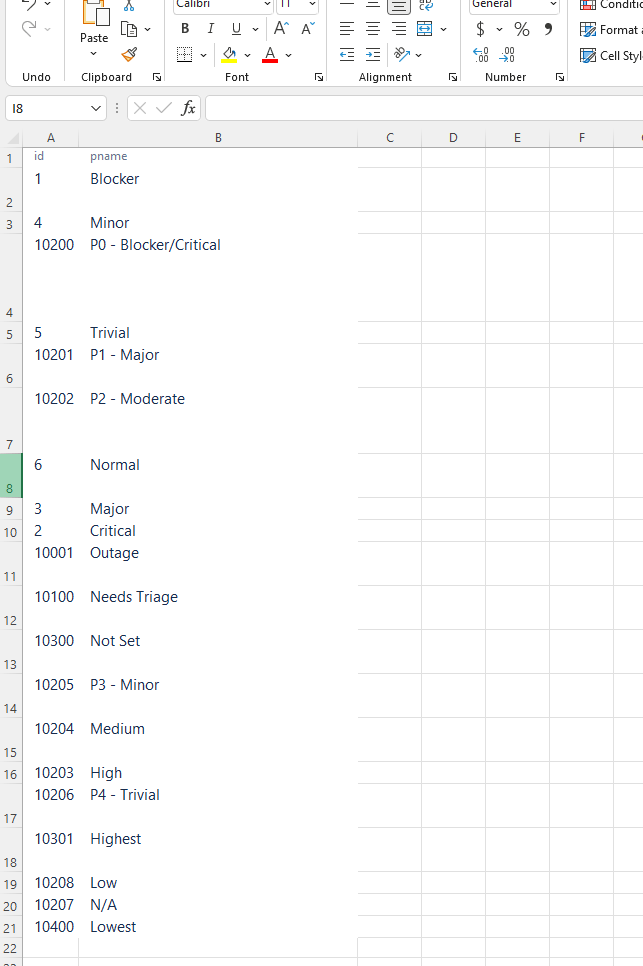
To automate the migration, I needed to gather essential data from the on-premises Jira instance, behind a firewall. This information included field IDs, issue types, statuses, and more, which were stored in the JSON files. To do this, I exported the data from the on-premises Jira and created an Excel file named “mappings.xlsx” to store this data for reference during the migration.
Here are the tables I exported and the corresponding sheets in the Excel file:
- Sheet users = SELECT “user_name”,”lower_email_address” FROM “cwd_user”
- Sheet customFields = SELECT “id”,”cfname” FROM “customfield”
- Sheet projects = SELECT “id”,”pkey” FROM “project”
- …
- Sheet status = SELECT “id”,”pname” FROM “issuestatus”
- Sheet priority = SELECT “id”,”pname” FROM “priority”
- Sheet issuetype‘ = SELECT “id”,”pname” FROM “issuetype”
These sheets provided the necessary information to perform lookups during the Cloud migration, eliminating the need for a direct connection to the on-premises server or data center.

The migration process begins by reading the JSON file that contains all the automation rules exported from the on-premises Jira environment. To obtain this JSON file, follow these steps:
- Access your on-premises Jira environment by navigating to
<BASE_URL>/secure/AutomationGlobalAdminAction!default.jspa#/, where<BASE_URL>represents the base URL of your Jira instance. - In this interface, locate and click on the three dots (typically indicating a menu or options) and select the “Export rules” option. This action will initiate the export process for all the automation rules.
- Once the export is complete, you will have a JSON file containing all the automation rules. It’s a good practice to rename this file to “automation-rules-data-center.json” for clarity.
- Place the “automation-rules-data-center.json” file in the same folder where you have downloaded the migration script.
Replacing Strings
The core of the migration script relied on identifying and replacing specific patterns within the JSON files. For instance, whenever the script encounters the following pattern in the JSON:
"authorAccountId": JIRAUSER12345"
I simply replace it with:
"authorAccountId": rodolfobortolin@gmail.com"
data = data.replace(fromStr, toStr)In essence, this technique involves locating particular strings or sequences of characters within the JSON data that follow a known pattern, and then replacing them with the desired values (mostly IDs) by making REST calls to Jira Cloud sending the name of the element (column B of the mappings.xlsx file). In this example, identifying instances where the “authorAccountId” is set to “JIRAUSER12345” and replacing it with “rodolfobortolin@gmail.com“. This process allows for systematic and automated data transformation within the JSON, ensuring that the migrated data is correctly formatted for the new environment.
To simplify the understanding of the algorithm, here’s what it does for each sheet in the Excel file:
- Iterate through all the rows in the Excel sheet named “projects.”
- For each project entry, perform the following replacements in the JSON file:
- For the project with key “12345” and key “PROJ” in the Jira On-premises:
- Make a REST API call to Jira Cloud to retrieve the ID of the project with the same key (let’s assume it returns “6789”).
- For each pattern in this list:
- ‘fieldType”: “project”, “type”: “SET”, “value”: {“type”: “ID”, “value”: 12345″‘
- ‘compareValue”: {“type”: “ID”, “value”: 12345’
- ‘fieldType”: “project”, “type”: “SET”, “value”: {“type”: “ID”, “value”: 6789″‘
- ‘compareValue”: {“type”: “ID”, “value”: 6789’
- For the project with key “12345” and key “PROJ” in the Jira On-premises:
Here are some examples of patterns I replaced:
- Status:
functions.cloud.replaceStatus(filename, [
    'destinationStatus": {"type": "ID", "value": "',
    'toStatus": [{"type": "ID", "value": "',
    'fromStatus": [{"type": "ID", "value": "'])
- Priority:
functions.cloud.replacePriority(filename, [
    'fieldType": "priority", "type": "SET", "value": {"type": "ID", "value": "',
    'selectedFieldType": "priority", "comparison": "EQUALS", "compareValue": {"type": "ID", "value": "'])
- Issue Type:
functions.cloud.replaceIssueType(filename, [
    'fieldType": "issuetype", "type": "SET", "value": {"type": "ID", "value": "',
    'selectedFieldType": "issuetype", "comparison": "EQUALS", "compareValue": {"type": "ID", "value": "'])
- Projects:
<strong>functions.cloud.replaceProject</strong>(filename, [
    'fieldType": "project", "type": "SET", "value": {"type": "ID", "value": "',
    'selectedFieldType": "project", "comparison": "EQUALS", "compareValue": {"type": "ID", "value": "',
    'projectId": "'])
- Usernames:
<strong>functions.cloud.replaceUsers</strong>(filename, [
    '"authorAccountId": "',
    '"actorAccountId": "',
    '{"type": "ID", "value": "']) #this one will not conflict with the ones above since it will not find usernames and consequently will not replace
These patterns served as key points for the script to perform replacements.
We typically migrate only the active automations from on-premises Jira to the Cloud. The script automates this process, ensuring that only enabled automations are transferred. This results in a cleaner Cloud setup, as you’ll only see active rules when importing, saving time and simplifying the transition.
Logging for Clarity
During the migration, the script generated a log file, “logs.log,” which recorded all the information about the migration process. This log proved invaluable for identifying IDs of both Cloud and Server components, simplifying troubleshooting and verification.
Example:
Project [ETS] replaced! From id [19103] to [10150]
Status [Ready for Deployment] replaced! From id [13763] to [10175]
CustomField [Impact] replaced! From id [customfield_15967] to [customfield_10004]
User [user@domain.com] with AccountID [5c3e817d324728a1db4017] replaced in your JSON file!
Additionally, the logs generated by the script offer a valuable insight into the information that was missing in the Cloud environment. By examining the JSON displayed in the logs after running the script, we can easily identify what data was absent in Cloud.
For example, here’s a snippet from the logs that showcases the missing information in the Cloud:
Reached the end of Statuses list! Here is the list of missing Statuses in Cloud:
[
    "IT Approval",
    "In PR",
    "Ready for Review",
    "Selected",
    "Approved by PMO",
    "Asset Export QA",
    "Procurement",
    "CPR Approved",
    "Design Architecture",
    "On Prod - Ready for Review",
    "ENG Review",
    "Needs Triage",
    "In Product Review"
]
Reached the end of Project list! Here is the list of missing projects in Cloud:
[
    "FT",
    "SCDSDOC",
    "OAPTD",
    "ACA",
    "DEST",
    "MC2S",
    "CPENYSP",
    "DAG"
]
These missing information are essential pieces of information, and the log file enables us to quickly identify them. This not only helps in the migration process but also in ensuring that all necessary data is successfully transferred to the Cloud environment.
Keep in mind that even though the logs contain statements like “Here is the list of missing Statuses in Cloud”, it’s essential to understand that this doesn’t necessarily mean that these statuses are genuinely missing in the Cloud environment. The reason is that it’s possible they are intentionally excluded from the migration scope.
In this context, interpreting the data in the logs is crucial. The script generates this information as part of its process, and it’s not an absolute indicator of what is missing in the Cloud. Instead, it reflects what the script has encountered during the run.
Findings and Limitations
The migration script worked effectively for most cases. However, there were some findings and limitations worth noting:
- Tags/labels needed manual migration.
- Transitions referring to transition IDs required manual replacement, as they do not exist in the Cloud.
- Changing the actor and author was irrelevant, as the rule actor is always Automation for Jira user.
- When there is a list to check, for example: status IS_ONE_OF (A, B, C), for this one, you can find these 3 IDs in the log file. It will be faster than trying to replace in the JSON file, so this continues to be a manual process.
- There are probably a few more patterns in the JSON file to be discovered, as this customer does not have all of them. Therefore, we need to be adding them as we find more.
What’s Next
While the script significantly eased the migration process, it is not perfect. There is always room for improvement, and we encourage contributions to enhance its functionality. The goal is to make the migration process as time-efficient as possible.
Conclusion
With the automation script in place, we successfully migrated over 300 automations in just 1 to 2 hours (still reviewing every single rule, to be sure), a task that would have taken an entire afternoon manually. Today, this script is being used in other projects as well, particularly for those with a large number of automations. Manual migration is now reserved for only the most straightforward cases. As we continue to refine and improve the script, we look forward to even more seamless migrations in the future.
 Atlassian Expert Tips