
Jira is known for its robust features and flexibility. One important aspect of managing projects and issues effectively is understanding user satisfaction. Jira offers a built-in satisfaction survey feature that enables teams to gather valuable feedback directly from users. However, many organizations find it lacking and opt for third-party plugins or SaaS solutions like SurveyMonkey.
In this step-by-step guide, I’will walk you through the process of integrating Jira with SurveyMonkey to send a satisfaction survey via email. This integration will allow you to collect valuable feedback from users, which can help enhance your team’s performance.
Limitations of Jira’s Built-in Satisfaction Surveys
While Jira’s native satisfaction survey feature is a valuable addition, it has several limitations that might make it less than ideal for some organizations:
- Basic Survey Options: The built-in surveys are quite basic in terms of customization. Organizations that require more advanced survey questions, logic, or reporting might find them lacking.
- Limited Distribution: The surveys are sent via email, which means they are only accessible to users with email addresses associated with their Jira accounts. This can exclude some stakeholders or clients from providing feedback.
- Visibility Issues: Many organizations prefer to keep satisfaction survey responses confidential, but in Jira, the feedback is often recorded on the same ticket. This lack of privacy can deter users from providing honest feedback, especially if they have concerns about their input being linked to specific issues.
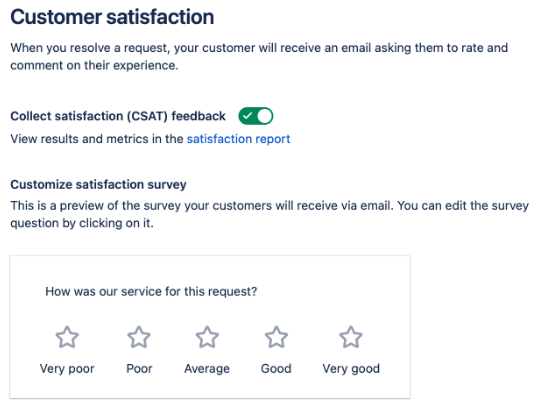
To overcome this lack of dynamism, one of the best options that I have implemented in some projects is integrating with the SurveyMonkey platform, and I will explain below how to do it.
Prerequisites:
Before you begin, ensure you have the following:
- A Jira instance.
- A satisfaction survey in a tool like SurveyMonkey.
- A basic understanding of Jira and HTML for survey customization.
Create a survey on SurveyMonkey
I won’t delve into the specifics of survey creation here, but it’s worth noting that SurveyMonkey offers a plethora of options including various field types, layouts, logic, estimated completion rates, and more. There are also numerous tutorials and videos available that you can leverage for guidance.
Here is a quick video about building surveys:
Create custom variables
To capture Jira variables within SurveyMonkey reports, you need to use custom variables in SurveyMonkey. This feature is available starting from the “Advantage” subscription plan. The cost-effectiveness of this solution depends on the tier of your Jira instance. SurveyMonkey does not require you to match the same tier as your Jira instance; you pay for surveys, not per user. Furthermore, SurveyMonkey is a reliable and widely recognized tool in the market for creating satisfaction surveys.
You can capture any field in Jira and bring it into SurveyMonkey using these custom variables. Whether you want to gather information about the agent who handled the request, the issue key, the team responsible, the issue’s priority, or any other specific details.
Custom Variables are present within the “Logic” link in the construction of your survey, as shown in the image below:
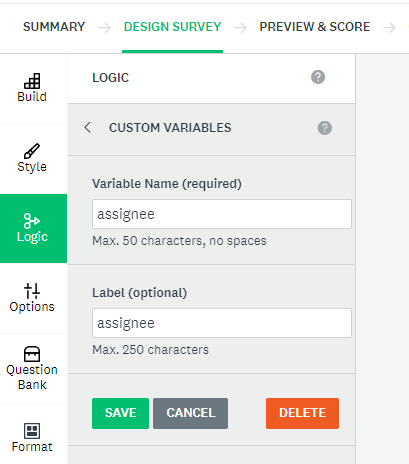
Here is a video explaining everything about how to create and use these variables in your research:
Set up an automation in Automation for Jira
Automation for Jira allows you to set up custom automation rules. In this case, we will create a rule to send the satisfaction survey email.
- In Jira, navigate to “Project Settings” and select “Automation”.
- Create a new automation rule or edit an existing one, depending on your preferences and project requirements.
- Select the trigger for your automation rule. Typically, you will want to choose a trigger that occurs when an issue is transitioned to the “Resolved” or “Closed” status.
- Configure the trigger conditions to ensure the rule activates when specific conditions are met (e.g., issue type, project, and status).
- Now, it’s time to create the action that will send the personalized satisfaction survey email with variables included in the survey URL.
- Add an action to send an email.
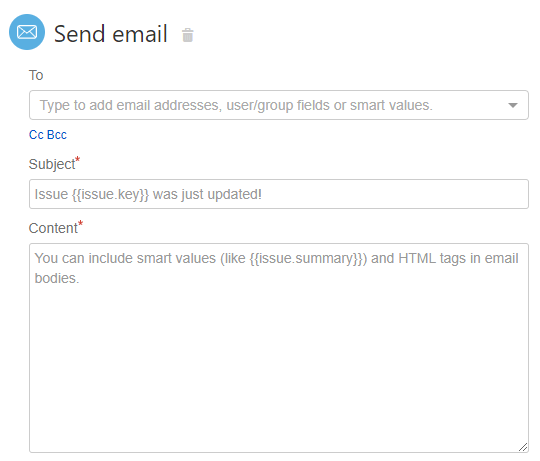
- In the email template, you can use Jira’s smart values to capture the required information. Here’s an example template:
—
Dear {{issue.reporter.displayName}},
We value your feedback for issue {{issue.key}}. It was resolved by {{issue.assignee.displayName}} on {{issue.created}}.
Issue Summary: {{issue.summary}}
Please take a moment to complete our satisfaction survey: <a href=”[Survey Link]”>https://your-survey-link.com/?ticket={{issue.key}}&assignee={{issue.assignee.displayName}}&IssueKey={{issue.key}}&CreationDate={{issue.created}}&Summary={{issue.summary}}</a>.
Thank you for your input!
Sincerely,
Support Team
—
Note that you can include smart values (like {{issue.summary}}) and HTML tags in email bodies, and I am sending by parameter each of the variables created within SurveyMonkey, in this case: Issue Key, Assignee, Creation Date, Summary.
Conclusion
From this point forward, you have an automation in place that sends an email to anyone associated with a Jira ticket, allowing them to respond to the satisfaction survey. With Automation for Jira, you can define various criteria for email dispatch, making the process far more dynamic than simply relying on the default Jira ‘Resolution’ field.
It’s worth noting that Atlassian also employs similar integrations. While they may not necessarily use SurveyMonkey, the principle and results are equivalent when incorporating any similar platform.
This is an example of a satisfaction survey that Atlassian sent me a few years ago, and the result can be very similar to this using SurveyMonkey (or an equivalent).
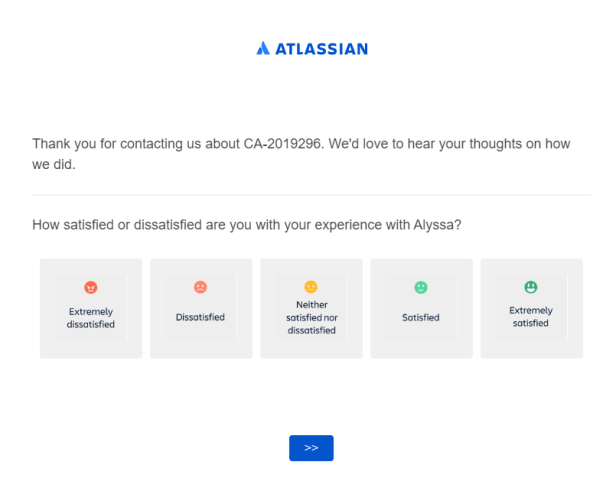
In conclusion, this integration not only streamlines the feedback collection process but also adds flexibility to your workflows. By using Automation for Jira in combination with a survey platform like SurveyMonkey, you can create a seamless, efficient system for gathering valuable insights, improving your projects, and enhancing user satisfaction.
 Atlassian Expert Tips