
- Introduction
- Creating the Risk Assessment Questionnaire
- Creating objects within the Assets table of Jira Service Management
- Creating the Custom Fields
- Automation to Sum Risk Points
- Determining Whether the Change is Simple or Complex
- Final Result
Introduction
Assessing the risk of change is a critical step in any organization’s workflow, and doing it efficiently can save time and resources.
In this post, I’ll explore how to streamline and enhance your change risk assessment process by utilizing the power of Automation for Jira and Jira Service Management Assets. By the end, you’ll have a clear understanding of how to determine whether a change is simple or complex, enabling the team to make informed decisions and take proactive measures to manage risks effectively.
Creating the Risk Assessment Questionnaire
First, you need to identify the different factors that contribute to the risk of change and assign them a numerical value. These factors can vary depending on the type and nature of the change. For example, a change that involves developing new features may have a higher risk than a change that involves only maintenance.
Second, you need to define a point scale for each change field, according to its level of impact or complexity. For example, a change that has a high potential to impact users may receive 10 points, while a change that has a low potential to impact users may receive 1 point. You can use the table bellow as a reference, but you can also adapt it to your needs and context.
Third, you need to evaluate each change according to the defined attributes and add up the corresponding points. For example, if you have a change that involves developing new features, has a high potential to impact users, requires production unavailability time, involves new technologies, and has a high technical complexity, you can add up the points for each attribute and obtain a result of 46 points.
Fourth, you need to define a point limit to classify the risk of the change as Simple, or Complex. In this example, I’ll define that changes with up to 15 points are Simple, and changes with more than 15 points are Complex.
Fifth, you need to communicate the risk of the change to the stakeholders and take the necessary measures to mitigate or avoid the potential negative effects of the change. For example, if you have a Complex change, you can request prior approval from managers, conduct rigorous testing, inform users in advance, prepare a contingency plan, etc.
| Change Field | Change Field Value | Risk Points |
|---|---|---|
| Maintenance / New Development | – Maintenance – New Development | 2 6 |
| Potential Users Affected | – Less than 5% – Less than 10% – Less than 20% – 20% or Greater | 0 2 4 6 |
| Predicted End-User Impact | – Low – Medium – High | -3 0 3 |
| Potential Production Down-Time | – Less than 30 minutes – Less than 2 hours – 2 to 4 hours – More than 4 hours | 0 1 2 3 |
| Compliance Scope | – No Financial systems or compliance impacted by the change – Secondary Impacted System is financial in nature or has compliance impact – No compliance or financial systems impacted | 0 2 4 |
| Typical User Application / System Usage | – Rare – Infrequent – Frequent – Daily or Greater | 0 1 2 3 |
| Security Risk | – No security changes – Change involves Security team and/or external facing applications | 0 -5 2 |
| New Technology Risk | – Technology has once existed in the production environment – Brand new technology used within the production environment | -2 4 |
| Technical Development Complexity | – Low Complexity – Moderate Complexity – High Complexity | -2 0 4 |
| Impact on IT Resources (hours) | – Less than 25 hours – 26 to 100 hours – 101 to 250 hours – More than 250 hours | -2 0 4 8 |
| Impact on Infrastructure | – Low Impact – Moderate Impact – High Impact | 0 2 4 |
Creating objects within the Assets table of Jira Service Management
To properly store the data pertaining to each field of the questionnaire, utilize the JSM assets table to create objects and their associated attributes. Remember to create an attribute of the “integer” type to effectively store the numerical value representing the points assigned to each option, as depicted in the image below.
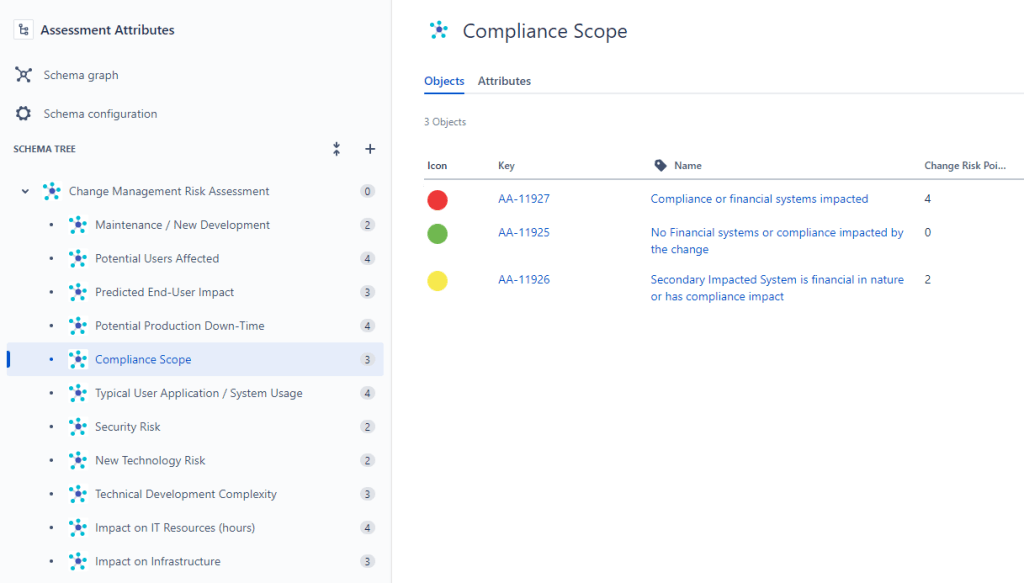
An important tip is to set an icon for each option. It will make it much easier for the user to choose the options, and within the issue, the visualization will be much better. At the end of this post, I will show the final result. Here are the ones that I used:



Creating the Custom Fields
Now that you have created the assets, you need to set up a field in Jira for each individual object within the assets table. Below, you will find a screenshot illustrating the configuration and the corresponding AQL that needs to be applied for each field in the questionnaire.

Automation to Sum Risk Points
Now comes the fun part, create an automation so that when one of the fields in the questionnaire is modified, the automation stores in variables the number of points for each field you created. In the image below, you can see that it’s only showing 3 out of the 11 fields in this questionnaire I’m creating.
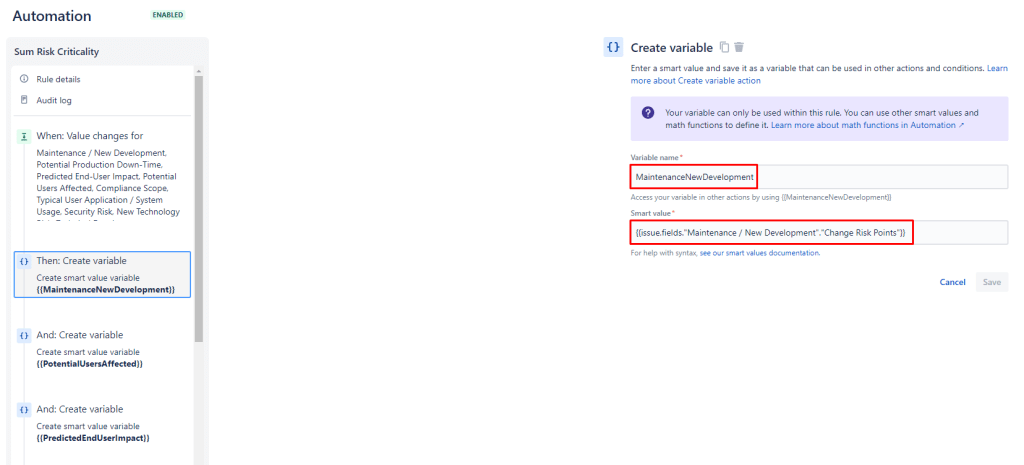
At the end of the automation, you will perform the sum of all these variables. Note that the sum is stored in another variable called riskScore.
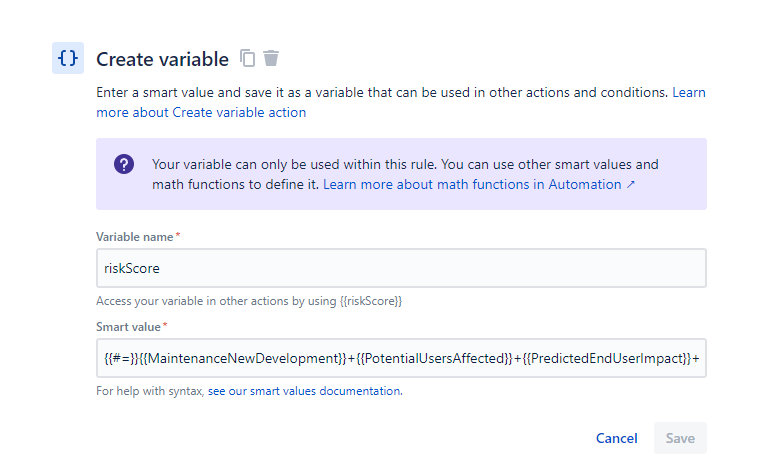
Here is the complete sum of the example I am creating:
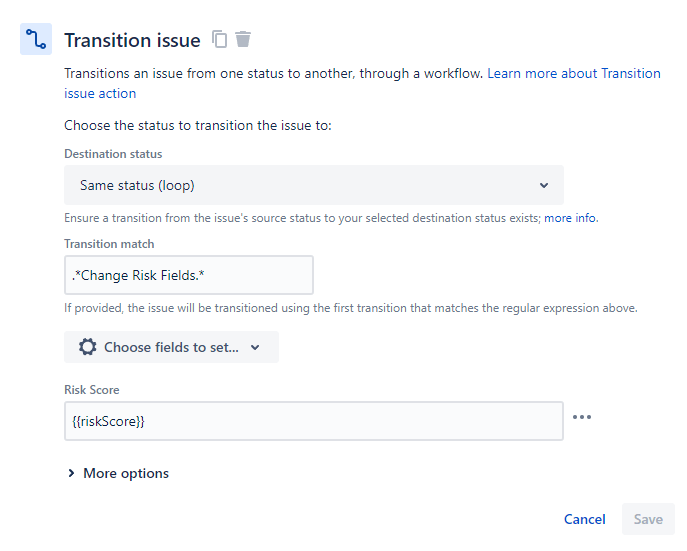
{{#=}}{{MaintenanceNewDevelopment}}+{{PotentialUsersAffected}}+{{PredictedEndUserImpact}}+{{PotentialProductionDownTime}}+{{ComplianceScope}}+{{TypicalUserApplicationSystemUsage}}+{{ComplianceScope}}+{{TypicalUserApplicationSystemUsage}}+{{SecurityRisk}}+{{NewTechnologyRisk}}+{{TechnicalDevelopmentComplexity}}+{{ImpactonITResources}}+{{ImpactonInfrastructure}}{{/}}Finally, since I don’t want users to manually modify the values of Change Risk and Risk Score (only automation can modify these values), I excluded these fields from the editing screen and created a transition in the workflow with a transition screen where it is possible to modify these fields.
I performed the transition to the same status by setting the Risk Score field with the riskScore variable:
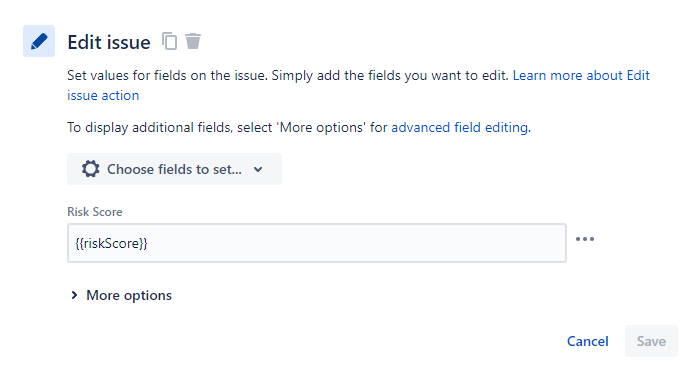
Or, if you don’t mind the user modifying the values, simply edit the issue using the Edit Issue
Determining Whether the Change is Simple or Complex
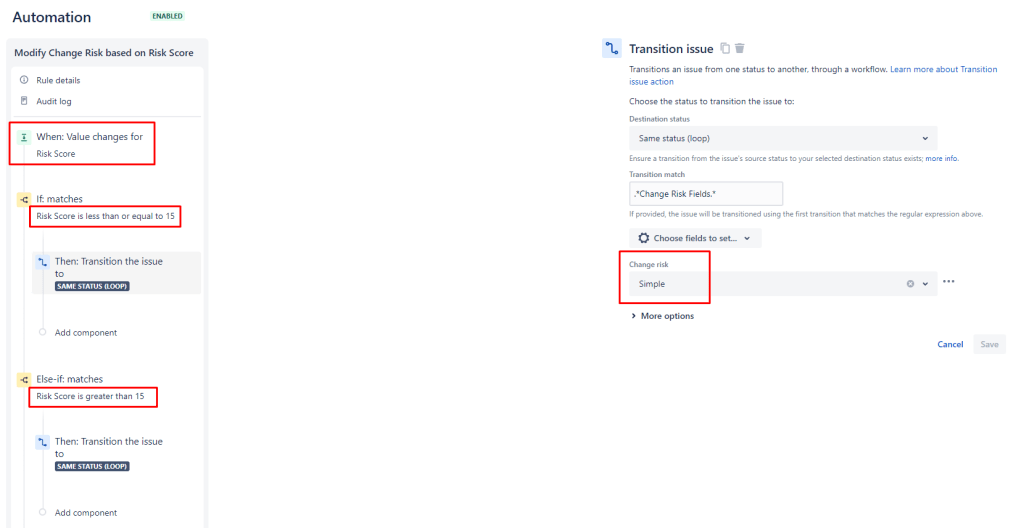
Well, now that I have the sum of the points (Risk Score) saved within the issue, I have created another automation so that every time this field is modified, if the value is less than 15, I set the Change Risk to Simple, otherwise, I set it to Complex.
Final Result
Finally, here is the final outcome of all this setup. This questionnaire is quite long, in my opinion, but here I am trying to show another way of creating a configuration based on points. From this, you will be able to create rules in the workflow based on the outcome, different notifications, and much more. I hope you like the result; I think it turned out really well!

 Atlassian Expert Tips