Introduction
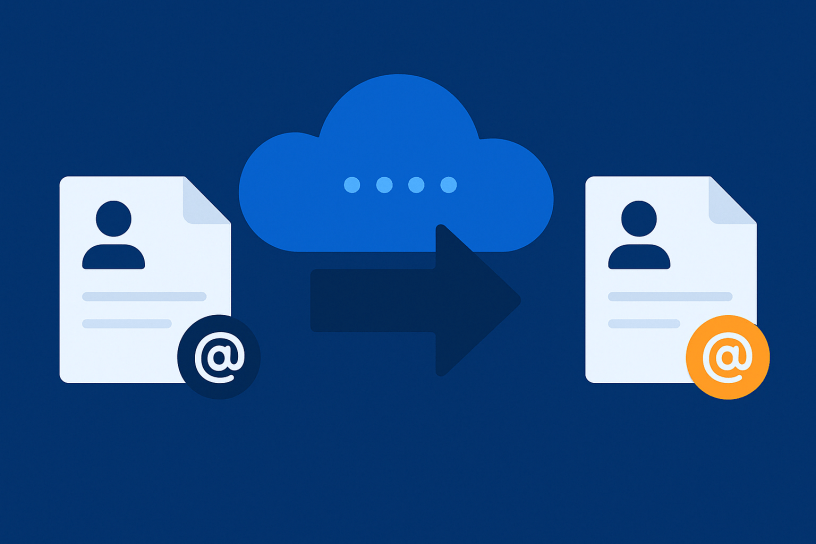
When organizations undergo rebranding or mergers, IT administrators often face the challenge of migrating user email addresses across domains in Atlassian Cloud. This is particularly relevant for companies transitioning from one domain to another. In this blog post, I’ll share a Python-based approach to efficiently handle this migration, leveraging Atlassian’s User Management REST API.
Understanding the Email Migration Process
Atlassian Cloud allows administrators to update user email addresses through their REST API. This is particularly useful for bulk operations when manual updates would be time-consuming and error-prone. Before diving into the implementation, it’s crucial to understand that:
- Both source and target domains must be verified in your Atlassian organization
- You need appropriate organization permissions privilege to manage users (usually org-admins group)
- Email changes will invalidate all active sessions, requiring users to log in again
- The target email address must not already be in use within the Atlassian ecosystem
- Your organization must have claimed the accounts using the source email domain
The Most Important Benefit: Preserving User History
One of the key advantages of this migration approach is that it preserves all user history and activities. Since you’re only changing the email address while maintaining the same Atlassian account ID, all of the following remain intact:
- Project contributions and authorship
- Issue assignments and comments
- Page edits and contributions
- User permissions and group memberships
- Personal dashboards and configurations
- User preferences and settings
This ensures business continuity and maintains the integrity of your organization’s knowledge base and workflow history.
Domain Verification – Critical First Step
Before attempting any email migrations, ensure both your source and target domains are verified in Atlassian. This is a mandatory security measure explicitly required by the API.
To verify a domain:
- Log in to
admin.atlassian.comwith admin credentials - Navigate to Organization > Domains and URLs
- Click Add domain and follow the verification process
- Ensure both domains show as “Verified”
- Make sure your organization has claimed all accounts with source domain emails
Without domain verification, the API calls to change email addresses will fail.
The Python Script Solution
I’ve developed a Python script that automates the email migration process. Let’s examine the key components:
import csv
import requests
import json

def update_user_email(user_id, email, token):
    try:
        url = f"https://api.atlassian.com/users/{user_id}/manage/email"
        headers = {
            "Authorization": f"Bearer {token}",
            "Content-Type": "application/json"
        }
        payload = {
            "email": email
        }

        response = requests.put(url, headers=headers, json=payload)

        if response.status_code == 204:
            print(f"Successfully updated email for user {user_id} to {email}")
        else:
            print(f"Failed to update email for user {user_id}. Status code: {response.status_code}")
            print(f"Response: {response.text}")
    except requests.exceptions.RequestException as e:
        print(f"Network-related error while updating user {user_id}:\n{e}")

def process_csv(csv_file, token):
    try:
        with open(csv_file, 'r', newline='', encoding='utf-8') as file:
            reader = csv.reader(file)
            for row in reader:
                if len(row) >= 2:
                    user_id = row[0]
                    email = row[1]
                    print(f"Processing user {user_id} with email {email}")
                    update_user_email(user_id, email, token)
                else:
                    print(f"Invalid row format (not enough columns): {row}")
    except FileNotFoundError:
        print(f"Error: The file '{csv_file}' was not found.")
    except csv.Error as e:
        print(f"Error while reading CSV file '{csv_file}':\n{e}")
    except Exception as e:
        print(f"An unexpected error occurred while processing the CSV file:\n{e}")

def main():
    try:
        bearer_token = "YOUR_API_TOKEN_HERE"
        csv_file = "EmailChange.csv"

        process_csv(csv_file, bearer_token)
    except Exception as e:
        print(f"An error occurred in the main function:\n{e}")

if __name__ == "__main__":
    main()
Prerequisites
Before running the script, ensure you have:
- Python 3.6+ installed on your system
- The
requestslibrary (pip install requests) - An API token with user management permissions and the
email.setprivilege - A properly formatted CSV file with user IDs and new email addresses
- Both source and target domains verified in your Atlassian organization
- Claimed all accounts with source domain emails in your organization
- Verified that the target email addresses are not already in use by any account within the Atlassian ecosystem
Generating an API Token
To use this script, you’ll need an API token with appropriate permissions:
- Log in to
admin.atlassian.comwith admin credentials - Navigate to Settings → API Keys
- Click Create API key
- Enter a descriptive name (e.g., “Email Domain Migration”)
- Select API key without scopes
- Click Create
- Copy the generated token (it will only be shown once)
- Replace
YOUR_API_TOKEN_HEREin the script with this token - Remember to delete the token after running the script.
Preparing the CSV File
The script expects a CSV file named EmailChange.csv with two columns:
- First column: Atlassian account ID
- Second column: New email address (with the target domain)
Example:
550e8400-e29b-41d4-a716-446655440000,john.smith@newdomain.com
712020:1530322b-a013-401b-a4af-835628fc8879,jane.doe@newdomain.com
You can obtain account IDs by exporting users from admin.atlassian.com → Directory → Users → Export Users.
Running the Migration
To execute the migration:
- Save the script as
change_users.py - Update the
bearer_tokenvariable with your API token - Ensure your CSV file is correctly formatted and in the same directory
- Run the script:
python change_users.py - Monitor the console output for success messages or errors
The script processes users sequentially and provides detailed feedback. For each user, you’ll see either:
- A success message confirming the email update
- An error message with details if the update fails
How the API Works
The script uses Atlassian’s User Management REST API, specifically the email endpoint:
PUT https://api.atlassian.com/users/{user_id}/manage/email
This endpoint is documented in the Atlassian Developer Portal. The request requires:
- A Bearer token for authentication
- The user’s account ID in the URL
- A JSON payload with the new email address
- Content-Type header set to application/json
A successful update returns a 204 No Content status code.
Handling Email Conflicts and Existing Accounts
When running the script, you may encounter an “alreadytaken” error message in the logs. This indicates that the target email address is already associated with another Atlassian account. The script itself helps identify these conflicts by displaying detailed error messages for each failed update.
Atlassian support can help identidfy these conflicts before running the script.
Important Considerations
- Email Uniqueness: The target email address must not already be in use by any account in the Atlassian ecosystem. If it is, you’ll receive an “alreadytaken” error in the response.
- Domain Verification: Both the source and target domains must be verified in your Atlassian organization as explicitly required by the API.
- Account Claims: Your organization must have claimed all accounts with the source domain emails.
- User History Preservation: The migration preserves all user history and activities since only the email changes while the account ID remains the same.
- Rate Limiting: Atlassian API has rate limits. For large migrations, consider adding delays between requests.
- Testing: Run the script on a small batch of test users before executing it on your entire user base.
- User Communication: Inform users about the email change in advance, as they’ll need to log in again with their new email since all active sessions will be invalidated.
Conclusion
Bulk email migration doesn’t have to be a manual, time-consuming process. With this Python script and Atlassian’s REST API, you can efficiently update user email addresses during domain migrations or company rebranding. The key benefit is that all user history and activities are preserved since only the email changes while the account ID remains the same.
Remember to verify both domains, ensure your organization has claimed all accounts with source domain emails, ensure target emails are not already in use, communicate changes to users, and test thoroughly before executing the full migration.
Feel free to adapt this script to your specific needs or extend it with additional functionality like logging or email notifications upon completion.
 Atlassian Expert Tips