
Problem Description
During data migration processes in Jira, it is common to encounter issues with custom fields, especially when multiple migrations have been performed, resulting in multiple fields with suffixes like “migrated,” “migrated 2,” etc. This can create significant disorganization and impact data integrity. This issue becomes particularly pronounced if your migration was divided into several batches, as each batch can create new versions of fields, further complicating the environment. To address this, a set of eight scripts was developed to systematically analyze, correct, and migrate these fields.
Step-by-Step Solution
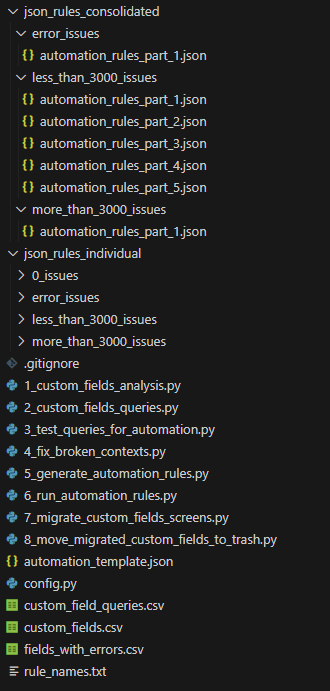
- Identifying the Base Field (Script 1):
- Objective: Identify the original field without migration suffixes and map all migrated fields.
- Process: The script analyzes the custom fields, creating a CSV that organizes the original field and its respective migrated fields. This establishes a clear basis for the subsequent steps.
- Generating Queries for Validation (Script 2):
- Objective: Generate queries to check if the original fields are empty while the migrated fields contain data.
- Process: The script generates queries that identify cases where the original field is empty, but the migrated field has data. These queries are then used by the subsequent script to validate the data. An example of a query generated by the script is:
"Additional Info, URL's, etc." is EMPTY and ("Additional Info, URL's, etc. (migrated)" is not EMPTY or "Additional Info, URL's, etc. (migrated 2)" is not EMPTY or "Additional Info, URL's, etc. (migrated 3)" is not EMPTY or "Additional Info, URL's, etc. (migrated) (migrated)" is not EMPTY or "Additional Info, URL's, etc. (migrated) (migrated 2)" is not EMPTY)
- Validation Testing (Script 3):
- Objective: Test the queries generated in the previous step and identify potential failures.
- Process: Since previous migrations may have caused inconsistencies, the script tests all queries, recording errors in a separate file. This file includes all fields that failed, particularly those that return the message: “does not exist or you do not have permission to view it.” This indicates that the migration broke and that the field is without context, making it impossible to perform JQL searches in Jira and, consequently, causing the automation that will be generated later to fail.
- Correcting Field Contexts (Script 4):
- Objective: Adjust the contexts of custom fields to ensure consistency.
- Process: Using Selenium, the script adjusts the contexts of the fields to be global, correcting fields without context or with inadequate context. This is essential for the proper operation of fields in Jira. Since this issue cannot be resolved using the API—due to the error message “does not exist or you do not have permission to view it,” which prevents API access to the field—the only way to fix this problem is by manually accessing the field through the browser and correcting the issue.
- Generating Automation Rules (Script 5):
- Objective: Create automation rules for migrating data from migrated fields to original fields.
- Process: The script generates the necessary automation rules to transfer the data systematically and efficiently. The rules are organized into folders: individual scripts containing 0 fields to be migrated, automations with less than 3,000 issues, and folders with more than 3,000 issues. The easiest method found to accomplish this was by manually creating an automation rule as a template and then modifying it according to the number of migrated fields for each original field. New rules are created based on this template, ensuring consistency and efficiency. Therefore, the automation will have as many “if else” conditions as there are fields with migrated tags.
- Additional Details: The quickest way to migrate fields from one side to another is by using automation, as using the REST API requires the field to be on the screen for editing, which could notify users of the changes. This is not ideal because if there are many fields and issues to be modified, the number of notifications could become overwhelming. Uploading the automations and importing them into Jira is still a manual process, but with the consolidated files generated by the script, it has become straightforward and does not require creating an additional automation for this step.
- Executing Automation Rules (Script 6):
- Objective: Implement the generated automation rules in Jira.
- Process: This script executes the automation rules to migrate the data, divided into individual and consolidated rules based on the number of issues. Individual rules allow for pilot testing of a single automation, while consolidated rules facilitate the import and execution of automations within Jira.
- Additional Details: Since there is no API available for executing these tasks, a script was developed using Selenium. This script automates the process by clicking where necessary, detecting when a rule is still executing, and performing queries to verify whether issues are being affected.
- Replacing Fields in Screens (Script 7):
- Objective: Migrate screens from migrated fields to original fields.
- Process: The script uses the REST API to place the original field immediately after the field with the “migrated” tag on the screen, and then subsequently deletes the “migrated” field from the screen.
- Removing Migrated Fields (Script 8):
- Objective: Move all migrated fields to obsolete status.
- Process: The script concludes the process by moving the migrated fields to a trash category, cleaning up the Jira environment and eliminating redundancies.
Conclusion
Through this structured set of scripts, it was possible to effectively organize and migrate custom fields in Jira, addressing issues of inconsistency and disorganization caused by multiple migrations. While this process could have been handled in different ways, breaking it down into several scripts allowed for small corrections and adjustments along the way, which was necessary due to the large number of duplicated fields caused by the migration. The use of Selenium in Script 6 was crucial for handling tasks that could not be managed via API. The REST API was effectively leveraged in Script 7 to manage the placement and removal of fields, further enhancing the process’s efficiency and clarity.
However, it’s important to note that the need for such an extensive and manual process highlights a significant limitation in Atlassian’s migration tools. Ideally, the migration tool should be able to detect if a field has already been migrated and prevent the creation of duplicate fields, which would save significant time and reduce the complexity of post-migration cleanup. This oversight creates unnecessary work and complexity, particularly in large-scale migrations, and underscores the need for improvements in the tool’s ability to manage and track migrated fields effectively.
Once again, Python scripts were crucial in saving the day, providing the necessary flexibility and control to navigate and resolve these complex migration challenges.
 Atlassian Expert Tips
Hi Rodolfo,
thank you for the explanation of your approach. Is there a repository where we can have a look at the code?
LikeLike
Hey! Thanks for the comment! Unfortunately this one will not share. Some of the solutions required some time to build and are being adopted internally at Valiantys. So it’s a fine line between what I can and cannot share. I hope you understand!
LikeLike